GA4 Conversion Tracking: A Practical Setup Guide

GA4 conversion tracking records the actions that matter to your business as “key events,” then lets you export the ones that actually predict revenue into Google Ads as conversions for bidding. That’s the whole system in one sentence. The minimal setup path is: identify the event, mark it as a key event, create or export it under Advertising > Conversion management, then link the property to your Google Ads account.
Before touching the interface, copy this checklist:
- Confirm the event already fires (check Realtime or DebugView).
- Mark only the events tied to revenue or qualified leads as key events.
- Export those key events to Google Ads and confirm the link is active.
- Don’t mark every button click as a key event. Bidding gets worse, not better, when you feed it noise.
- Don’t skip the Google Ads link check. An unlinked property can’t export anything, no matter how clean your events are.
Key Takeaways
Accurate GA4 conversion tracking depends on marking only revenue-relevant events as key events, exporting them deliberately to Google Ads, and validating everything in DebugView before trusting the data.
| Point | Details |
|---|---|
| Mark key events selectively | Flag only actions tied to revenue or qualified leads, not every click or scroll. |
| Separate measurement from bidding | Track broadly in GA4 for insight, but export narrowly to Google Ads to protect Smart Bidding accuracy. |
| Choose GTM for lead forms | Use a dataLayer push confirmed by success, not Enhanced Measurement’s form_submit, for professional lead tracking. |
| Validate before trusting | Confirm event_name and parameters in DebugView and Realtime before relying on data for bidding decisions. |
| Get setup audited professionally | Proxiumdigital builds and audits GA4 conversion tracking as part of its integrated web design and SEO work for Michigan businesses. |
Table of Contents
- GA4 Conversion Tracking Setup Checklist
- What Is the Difference Between a Key Event and a Conversion?
- How Do You Plan GA4 Conversions Before You Build Anything?
- How Do You Implement GA4 Events: Enhanced Measurement, gtag, or GTM?
- How Do You Link GA4 to Google Ads for Conversion Tracking?
- How Do You Test and Validate GA4 Conversions Before Trusting Them?
- Why Don’t GA4 and Google Ads Conversion Numbers Match?
- What KPIs Should You Track After Setup?
- How Do You Audit an Existing GA4 Conversion Setup?
- Which Conversions Should Busy Marketing Teams Prioritize First?
- Get Help Auditing or Building Your GA4 Conversion Tracking
- Sources
- FAQ
GA4 Conversion Tracking Setup Checklist
Run through this sequence before you call anything “done.” Each step catches a mistake the next one would otherwise inherit.
- Verify property structure. Confirm you’re editing the right GA4 property and data stream, especially if you manage multiple sites or subdomains.
- Pick your events. List a small set of key actions that indicate business value, such as purchase or generate_lead.
- Enable Enhanced Measurement if your site relies on standard interactions like scrolls, outbound clicks, or file downloads.
- Create recommended or custom events for anything Enhanced Measurement doesn’t cover natively.
- Mark key events in Admin > Events, toggling “Mark as key event” for each qualifying action.
- Export to Google Ads via Advertising > Conversion management, then confirm the linked account appears.
You’ll need Marketer-level access or higher in GA4, plus edit access on a linked Google Ads account, to complete steps 5 and 6. Before moving on, check that your test event shows up in Realtime with the correct name and parameters. If it doesn’t, nothing downstream will work either.
What Is the Difference Between a Key Event and a Conversion?
Every interaction on your site, a click, a scroll, a form submission, gets logged in GA4 as an event by default. Marking one as a key event tells GA4 “this is a candidate for conversion tracking,” and Google has unified this terminology so that any collected event can become a key event and then be used to build a conversion shared with Google Ads. The distinction matters because these two labels do different jobs. A key event is an internal measurement signal. It shows up in your GA4 reports, feeds your funnels, and helps you understand user behavior. A Google Ads conversion is a bidding signal. Export the wrong key event, and you’re not just cluttering a report, you’re actively steering Smart Bidding toward the wrong outcome.
Take two common examples:
- Ecommerce purchase: GA4 automatically flags
purchaseas a key event the moment ecommerce data starts flowing in. No manual setup needed. - Lead form submission: There’s no automatic equivalent. You have to build or configure a
generate_leadevent yourself, and decide whether Enhanced Measurement’sform_submitis accurate enough to trust.
Treat key events and Ads conversions as two separate layers. One measures everything. The other should only carry the signals worth paying to optimize toward.
How Do You Plan GA4 Conversions Before You Build Anything?
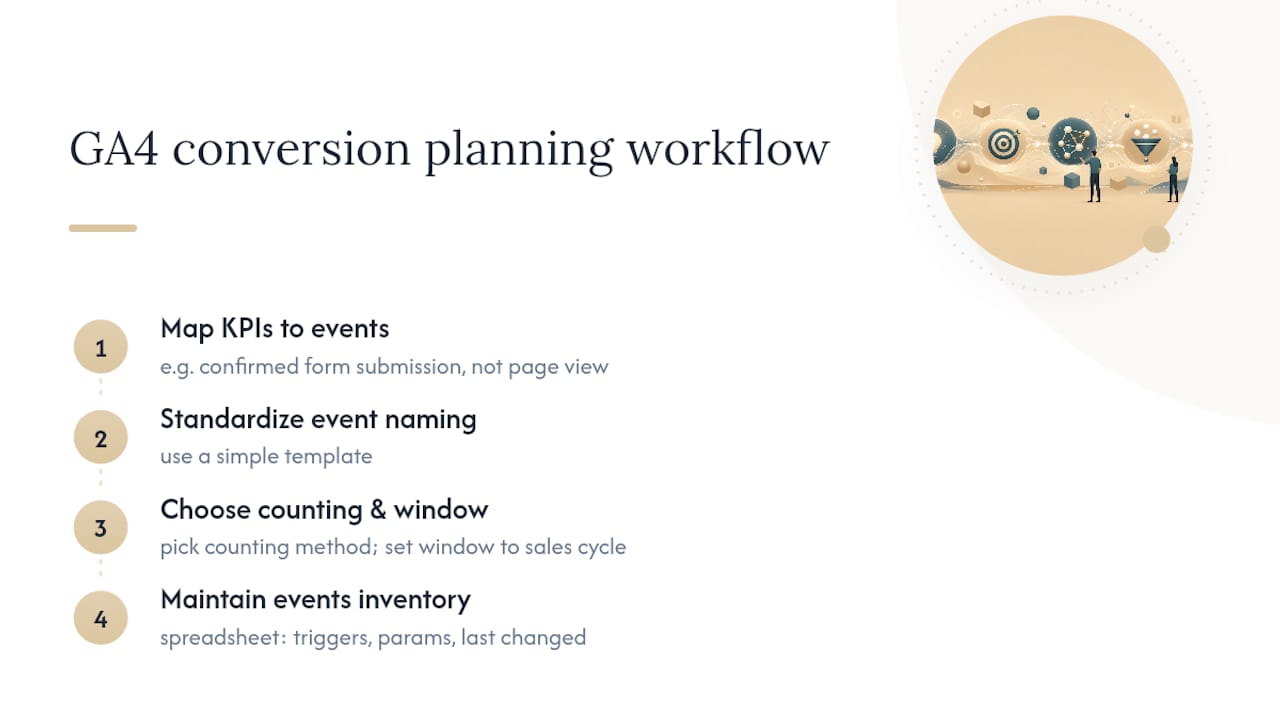
Bad conversion data almost never starts with a broken tag. It starts with skipping the planning step. Before you open GA4’s interface, write down your actual business KPIs, revenue per sale, cost per qualified lead, trial signups, and map each one to a specific, measurable event. A law firm’s KPI might be “consultation requests,” which maps to a generate_lead event fired only after a confirmed form submission, not a page view of the contact form.
Once your KPIs are mapped, standardize how you name things. A simple template works: object_action_variant (e.g., form_contact_submit, form_quote_submit). Skipping this step is how teams end up with five different lead events six months later, none of which match.
You also need to decide your counting method upfront. GA4 lets you count “once per session” or “every time” the event fires, and this choice changes your conversion rate math significantly for repeatable actions like video plays or newsletter signups. Pair that with a conversion window decision (how far back GA4 credits are attributed) so it matches your typical sales cycle, not a generic default.
Pro Tip: Keep a simple spreadsheet, an events inventory, listing every key event, its trigger, its parameters, and the date it was last changed. This one habit prevents more tracking drift than any tool you’ll buy.
How Do You Implement GA4 Events: Enhanced Measurement, gtag, or GTM?
Three implementation paths exist, and picking the wrong one for the job is the single most common reason GA4 data ends up unreliable.
Enhanced Measurement handles the basics automatically. It captures page_view, scroll, outbound clicks, file downloads, form_start, form_submit, and video events without any code changes, and it sends specific parameters with each one that populate your reports. For a content site or a simple brochure business page where the stakes are low, this is often enough. Turn it on in Admin > Data Streams > Enhanced Measurement and you’re capturing meaningful behavior within minutes.

The catch is form_submit. It’s convenient, but MeasureSchool’s testing found that form tracking features like form_start and form_submit can generate false positives and offer limited segmentation when a site runs multiple forms, so a page with a newsletter signup and a quote request form can blur the two together in reporting.
GA4’s recommended events sit one step up. These are Google-defined event names (sign_up, login, add_to_cart) with expected parameters, useful when your action fits an existing template and you’re implementing through gtag.js directly on the page.
Google Tag Manager is the right call once accuracy matters more than speed. GTM gives you trigger conditions based on actual outcomes, a confirmed AJAX response, a “thank you” page load, a dataLayer push fired only on success, rather than a raw click. That distinction is exactly why practitioners recommend GTM with a dataLayer push over Enhanced Measurement’s form_submit for anything resembling professional lead tracking, where a false positive costs you a wasted ad dollar, not just a messy chart.
Choosing between gtag and GTM comes down to who’s maintaining the setup. Gtag requires a developer to touch code every time an event changes. GTM lets a marketer manage triggers and tags through a UI, with version history and a rollback option, which matters enormously once more than one person touches the account.
A practical GTM rollout follows this order:
- Identify the true success signal (not the click, the confirmation).
- Choose or build the trigger (page load, dataLayer event, click plus condition).
- Name the GA4 event consistently with your naming convention.
- Map parameters (form ID, page path, lead value) to GA4 fields.
- Push the event to the dataLayer at the moment of actual success.
- Test in Preview mode before publishing.
Watch for these implementation pitfalls:
- Firing the same event twice, once via Enhanced Measurement and once via a custom GTM tag, which inflates your counts silently.
- Using inconsistent parameter names across web and app streams, breaking cross-platform reporting.
- Naming events differently between staging and production, so audits show phantom drops.
How Do You Link GA4 to Google Ads for Conversion Tracking?
Once a key event reflects something worth bidding on, export it. Google’s own guidance is to use the Advertising > Conversion management interface to send a GA4 key event into Google Ads as a Conversion, which centralizes your settings in one place and cuts down on the discrepancies that come from managing the same conversion in two systems separately.
A linked Google Ads account is required before any export works, and you’ll need Google signals enabled if you want visibility into cross-device conversions. Skip that step and mobile-to-desktop conversion paths simply won’t show up on the Ads side.
Some settings carry over automatically once you build the conversion in GA4. The counting method and conversion window are often inherited from Analytics, and some of those settings aren’t editable back in Google Ads afterward, so get them right at the source. Attribution settings behave a bit differently: Google Ads applies its own model logic on top of the imported event, which is why the two platforms rarely show identical totals even when the underlying data matches.
Not every key event deserves export status. A newsletter signup might be worth tracking in GA4 for engagement insight, but exporting it as a primary Ads conversion alongside your actual sales pipeline will confuse Smart Bidding, which optimizes toward whatever signal you hand it, good or bad.
Only export high-value key events to Google Ads. Everything else stays in GA4 as a reporting signal, not a bidding instruction.
Analytics-created conversions can also be marked “secondary” in Google Ads specifically to prevent double counting against a conversion you’re already tracking natively in Ads, which is worth checking any time your numbers look inflated.
How Do You Test and Validate GA4 Conversions Before Trusting Them?
Never trust a conversion you haven’t watched fire in real time. Run this sequence before it touches a live campaign:
- GTM Preview mode first, confirming the trigger fires on the correct action, not a nearby click.
- DebugView next, checking the event_name, every parameter value, and any user properties attached.
- Realtime reports to confirm the event populates the standard GA4 interface, not just the debug console.
- Tag Assistant or browser network tab as a final check, verifying the hit actually reaches Google’s servers with no blocked requests.
Timing matters here. An event can appear instantly in DebugView but take up to 24 to 48 hours to show reliably in standard GA4 reports, so don’t panic if a fresh conversion looks thin on day one. If it never appears at all after that window, the problem usually traces back to a missing key event flag or a broken Ads link, not a reporting delay.
Pro Tip: Test both success and failure paths, not just the happy click. Submit a form with a validation error, then submit one correctly, and confirm only the successful attempt fires your event. If both fire, you’ve found your form_submit inflation problem before it hits your ad budget.

Why Don’t GA4 and Google Ads Conversion Numbers Match?
Discrepancies between the two platforms are common enough that most marketers eventually chase one down. The usual suspects:
- Duplicate events, often from running Enhanced Measurement’s form_submit alongside a custom GTM tag for the same form.
- Time zone mismatches between your GA4 property settings and your Google Ads account, which shifts daily totals near midnight.
- Different attribution windows, since GA4 and Ads can apply different lookback periods to the same conversion.
- A conversion marked “secondary” in Ads, which removes it from bidding calculations without deleting it from reports.
- View-through limits, since exported Analytics-based conversions don’t carry the same view-through tracking as native Ads conversions.
- Google signals disabled, hiding cross-device activity that would otherwise reconcile the numbers.
Check GA4’s Conversion management change history first when numbers shift unexpectedly; it’s the fastest way to spot whether someone edited a counting method or window setting recently. For form-specific mismatches, the fix is usually structural: Enhanced Measurement’s form_submit fires on click intent in some configurations rather than confirmed submission, so a spike in “leads” that doesn’t match your CRM almost always means it’s time to move that event to GTM with a dataLayer push instead.
What KPIs Should You Track After Setup?
The first 30 days are about catching setup errors, not optimizing performance. Watch conversion count and conversion rate daily for sudden drops or spikes, since those almost always trace back to a tag change rather than real user behavior shifting overnight. By day 90, shift attention to parameter completeness, are you actually getting form IDs, transaction values, and lead sources on every event, and to conversions by channel, which reveals if one traffic source is reporting inconsistently.
GA4’s Conversion performance report is your validation tool for anything exported to Google Ads. It shows how conversions built from Analytics key events perform, and since these Ads conversions don’t always mirror back into standard Analytics reports cleanly, cross-checking here catches gaps a quick Realtime glance would miss. Beyond 180 days, run a full parameter audit: missing values on a third of your purchase events is a silent problem that won’t show up as a “drop,” just as steadily worse data quality.
How Do You Audit an Existing GA4 Conversion Setup?
A proper audit takes less time than most teams assume. Set aside 30 to 60 minutes and work through it in order:
- Inventory every current key event and its trigger source.
- Check naming and parameter consistency across web and app streams.
- Confirm only intended events are marked as key events, nothing extra slipped through.
- Verify each exported conversion still appears correctly in Google Ads.
- Run one end-to-end test per event to confirm live data matches expectations.
- Re-audit after any major site redesign, a new form vendor, or a checkout flow change, and do a lighter quarterly pass otherwise.
- Screenshot each check and save links to relevant entries in GA4’s change history, so the next audit starts from evidence, not memory.
Which Conversions Should Busy Marketing Teams Prioritize First?
If you’re short on time, measure broadly in GA4 but export narrowly to Google Ads. Track every meaningful interaction internally for insight, then hand Smart Bidding only the handful of events that reliably predict revenue, a completed purchase, a confirmed lead, a booked call. Everything else stays a reporting signal.
Enhanced Measurement is a fine starting point for low-stakes sites, but the moment lead quality affects your ad spend, that trade-off stops paying for itself. Invest in GTM. And before you scale any conversion export wider, revisit your naming and parameter hygiene first. Sloppy foundations compound as ad budgets grow.
Get Help Auditing or Building Your GA4 Conversion Tracking
If your conversion data has ever made you second-guess a bidding decision, that’s usually a sign the tracking foundation needs attention, not the ad budget. Proxiumdigital builds GA4 conversion tracking directly into the website work it already does for local service businesses and professional firms across Michigan, so your key events, form logic, and Google Ads exports are validated as part of the build instead of patched on afterward.

Working with a team that treats analytics and web design as one job means fewer surprises later: a documented event inventory, conversions that actually align with what Google Ads is bidding on, and reporting you can hand to a partner or lender without caveats. Proxiumdigital’s SEO and web design services cover this kind of implementation and ongoing measurement work together, rather than splitting it across separate vendors who don’t talk to each other. If your current setup has never been audited, or you’re planning a new site and want tracking built in from day one, request pricing details and get a straight answer on what a proper GA4 setup would look like for your business.
Sources
- Conversions vs. key events in Google Analytics - Analytics Help
- How to track form submissions in Google Analytics 4
FAQ
How do I set up conversion tracking in Google Analytics?
Identify the event that represents a real conversion, confirm it fires correctly in Realtime or DebugView, mark it as a key event in GA4, then export it to Google Ads through Advertising > Conversion management.
How do I check conversions in GA4?
Open the Conversion performance report under Advertising, or check Reports > Engagement > Conversions to see key event counts alongside conversion rate and value.
What is the difference between GA4 and Google Ads conversion tracking?
GA4 key events measure everything happening on your site for internal reporting, while Google Ads conversions are the specific signals you export from GA4 to guide Smart Bidding.
How do I track conversion rate in Google Analytics?
GA4 calculates conversion rate automatically once an event is marked as a key event, dividing key event occurrences by sessions or users depending on the report view you select.
Can Proxiumdigital help fix conversion tracking that’s already broken?
Yes. Proxiumdigital audits existing GA4 setups as part of its SEO and web design work, correcting duplicate events, misconfigured key events, and broken Google Ads exports for Michigan businesses.