Alt Text for SEO: Write It Right Every Time

Good alt text is a concise, human-first description that explains what an image shows and why it’s on the page. The working template: [purpose] + [key visual details or embedded text] + [action/function if interactive].
Two quick examples show the gap:
- Bad:
alt="image of dog"— tells Google and screen readers almost nothing - Good:
alt="Golden retriever puppy sitting on a hardwood floor, used to illustrate a pet insurance comparison guide"— purpose, detail, context
The difference isn’t length. It’s intent. Every rule in this guide flows from that single idea.
Key Takeaways
Effective alt text for SEO requires writing descriptions that serve both screen-reader users and search crawlers by explaining an image’s purpose in context, not just its appearance.
| Point | Details |
|---|---|
| Write for intent, not appearance | Ask why the image is on the page before describing what it looks like. |
| Null alt for decorative images | Use alt="" on stylistic images so screen readers skip them without losing content. |
| Include embedded text | If an image contains a headline or label, that text belongs in the alt attribute or adjacent copy. |
| Keywords belong naturally | One relevant keyword fits when it genuinely describes the image; stuffing is a spam signal. |
| Proxiumdigital’s approach | Proxiumdigital integrates alt-text audits into every SEO engagement and monthly site management cycle. |
Table of Contents
- Why alt text for SEO and accessibility both depend on the same description
- How to write alt text that works: a practical checklist
- Image alt text examples: good vs. bad across common image types
- When should you use null alt text instead of a description?
- SEO-specific steps that go beyond the alt attribute
- How to add and edit alt text in HTML, WordPress, and Shopify
- How to audit and test your alt text coverage
- Alt text deserves a seat at the content planning table
- Proxiumdigital handles alt text as part of a complete SEO build
- Sources
- FAQ
Why alt text for SEO and accessibility both depend on the same description
The alt attribute is an HTML attribute on <img> elements that holds a text alternative for an image. Screen readers announce it aloud for users who can’t see the image. Search engine crawlers read it because they can’t interpret pixels the way a human does.
Those two audiences need the same thing: a description that explains what the image means in context, not just what it looks like.
Google Search Central confirms that alt text helps Google understand an image’s subject and improves the chance it appears in relevant image search results. Skip it, and you’re leaving that indexing signal blank.
The W3C WAI decision tree and WCAG H37 technique both require the alt attribute on every <img> element. The attribute can be empty (alt=""), but it must be present. Without it, many screen readers fall back to reading the filename aloud — so a user hears “DSC00472_final_v3.jpg” instead of anything useful.
Alt text vs. related attributes — a quick distinction:
- Caption: visible text below the image, adds editorial context for all users
- Title attribute: tooltip on hover, not read consistently by screen readers, low SEO value
- Filename: a weak secondary signal Google uses when alt text is absent; descriptive filenames help but don’t replace alt text
How to write alt text that works: a practical checklist
The Nielsen Norman Group’s guidance frames the core mistake clearly: most authors describe what an image looks like rather than explaining why it’s there. Start with intent.
- Ask “why is this image here?” before you type a single word. A photo of a contractor on a rooftop means something different on a safety-training page than on a company About page.
- Skip “image of” or “photo of.” Screen readers already announce the element type. Opening with that phrase wastes the first words a listener hears.
- Keep it under roughly 150 characters. That’s a practical guideline, not a hard rule. Most informational images need far fewer words. Complex charts are the exception (more on those in the examples section).
- Include embedded text. If a banner reads “Free Shipping Over $50,” that text belongs in the alt attribute or in adjacent page copy, per Section508.
- Use
alt=""for decorative images. Dividers, background textures, and purely stylistic icons add nothing when read aloud. Null alt tells screen readers to skip them entirely, per WebAIM’s alt-text guidance. - Describe the action for functional images. A button with a magnifying glass icon gets
alt="Search", notalt="magnifying glass icon". - Use keywords naturally. Include a relevant term only when it genuinely describes the image. Stuffing keywords into alt text is a spam signal to Google and an annoyance to screen-reader users.
Pro Tip: Front-load the most important words. Screen-reader users often tab through images quickly, so “Red leather sofa in a modern living room” lands faster than “A modern living room featuring a red leather sofa.”
Image alt text examples: good vs. bad across common image types
The table below covers the image types you’ll encounter most often. Each “why it works” note is the part most guides skip.
| Image type | Good alt text | Why it works |
|---|---|---|
| Product photo | "Navy blue wool peacoat, double-breasted, front view" |
Describes the product accurately so a screen reader user gets the same shopping information as a sighted user |
| Company logo (header) | "Acme Plumbing logo" |
Identifies the brand; no need to describe the graphic in detail since it’s a navigation landmark |
| Company logo (About page) | "Acme Plumbing logo: a wrench forming the letter A" |
More detail is appropriate here because the image is the subject, not just a nav element |
| Infographic | "Infographic: 5 steps to winterize a home — insulate pipes, seal windows, service furnace, check roof, stock emergency kit" |
Captures the key data points so the content isn’t lost to non-sighted users |
| Chart or graph | "Bar chart showing website traffic growth from 200 to 1,400 monthly visits between January and June 2025" |
Conveys the trend and the numbers; a linked data table handles the full dataset |
| CTA button | "Get your free SEO audit" |
Describes the action, not the button’s appearance |
| Decorative divider | alt="" |
Null alt tells screen readers to skip it — no information is lost |
For complex images like multi-series charts or detailed infographics, Google’s technical writing accessibility guide recommends a short summary in the alt attribute paired with a full data table or linked long description nearby. Trying to cram every data point into alt text creates a wall of text that serves no one well.
The University of South Carolina’s alt-text examples are worth bookmarking for authors who want model strings across a wider range of image types.
When should you use null alt text instead of a description?
Decorative images are the most common case where alt="" is the right call. A background gradient, a stock photo used purely as a visual spacer, a repeated bullet-point icon — none of these add meaning that a screen reader user would miss.
WebAIM’s guidance is direct: if an image is purely decorative or redundant with surrounding text, use null alt so screen readers skip it. The alternative is forcing users to sit through descriptions of things that don’t help them understand the page.
A quick decision checklist:
- Does the image add unique meaning not covered by surrounding text? Yes → write descriptive alt text.
- Is the image purely stylistic (texture, divider, decorative icon)? Yes → use
alt="". - Does the image contain text that matters to the message? Yes → include that text in the alt attribute.
- Is the image a functional element (button, link)? Yes → describe the action it performs.
The W3C WAI decision tree walks through these branches in detail and is the authoritative reference when edge cases come up.
SEO-specific steps that go beyond the alt attribute
Alt text is the most important image metadata for indexing, but it doesn’t work in isolation. A few surrounding factors determine whether your images show up in Google Images and contribute to page relevance.
- Use descriptive filenames.
navy-wool-peacoat-front.jpggives Google a secondary signal that reinforces the alt text.IMG_4821.jpggives it nothing. Rename files before uploading. - Place images near relevant text. Google extracts context from the surrounding copy. An image of a finished bathroom remodel placed inside the bathroom-remodeling section of a service page carries more weight than the same image dropped into a footer.
- Submit an image sitemap. For large sites or image-heavy pages, an image sitemap helps Google discover and index images it might otherwise miss. Include
<image:title>and<image:caption>tags alongside the image URL. - Add structured data. Schema properties like
primaryImageOfPagesignal which image best represents a page, reinforcing the alt text and filename signals already in place. - Optimize for performance. Slow-loading images hurt both page speed scores and the crawl budget available for indexing. Use modern formats (WebP, AVIF) and responsive
srcsetattributes. A technical SEO audit will surface image-size issues alongside alt-text gaps.
For a broader visual content workflow, the visual content SEO checklist covers filenames, compression, and structured data in a single reference.
Pro Tip: Google Search Central explicitly warns against keyword stuffing in alt attributes. One relevant keyword, placed naturally, is the ceiling — not the floor.
How to add and edit alt text in HTML, WordPress, and Shopify
The HTML is straightforward:
<img src="navy-wool-peacoat-front.jpg" alt="Navy blue wool peacoat, double-breasted, front view">
The alt attribute is always present. For decorative images, it’s present but empty: alt="". Never omit the attribute entirely.
WordPress: Open the Media Library, click any image, and edit the “Alt Text” field in the right panel. In the block editor, select an image block and find the “Alt text” field in the right-side settings panel under “Image settings.” The field is separate from the caption and title.
Shopify: Go to Products, open a product, click any product image, and select “Edit alt text” from the image menu. For collection images, the same option appears when you click the image in the collection editor.
Prioritize in this order when you’re working through a backlog:
- Product hero images and gallery photos
- Hero and banner images on landing pages
- Images used in paid ad campaigns or email
- Charts, infographics, and data visuals
- Navigation logos and CTA buttons
One automation pitfall worth flagging: avoid setting a single global alt tag for an image used across multiple pages. The same product photo on a category page, a blog post, and a paid landing page may need three different alt texts because the context and user intent differ on each. Nielsen Norman Group’s research makes this point explicitly: the same image may need different alt text depending on where it appears.
How to audit and test your alt text coverage
A solid QA process catches gaps before they compound. Run through these steps in order.
- Run Lighthouse. In Chrome DevTools, open the Lighthouse tab and run an accessibility audit. It flags images missing the
altattribute and images with empty alt text that appear to be content-bearing. - Run axe DevTools. The axe browser extension applies WCAG rule-level checks and categorizes violations by severity. It catches cases Lighthouse misses, including images with alt text that duplicates adjacent text.
- Run WAVE. The WAVE browser extension overlays visual indicators directly on the page, making it easy to spot missing or suspicious alt text without reading code.
- Do a manual screen-reader pass. Use NVDA on Windows or VoiceOver on macOS/iOS. Tab through a representative page and listen. You’ll catch issues automated tools can’t flag: alt text that’s technically present but confusing, or functional images whose descriptions don’t match the action they trigger.
- Test keyboard-only navigation. Tab through linked images and buttons. If the announced text doesn’t tell you what will happen when you press Enter, the alt text needs work.
- Check Google Search Console. Open the Performance report, filter by Search Type: Image, and track impressions and clicks for image-heavy pages. A meaningful change window after an alt-text update is typically 4–8 weeks, depending on crawl frequency.
Proxiumdigital’s internal QA benchmark: audit a sample of high-value pages monthly and track the percentage of images with descriptive alt text. Even a simple spreadsheet with page URL, image count, and “alt text present / missing / empty” columns gives you a trend line to act on.
Alt text deserves a seat at the content planning table
Most teams treat alt text as a publishing afterthought — something to fill in before hitting “Publish” if there’s time. That framing is the root of most alt-text problems.
At Proxiumdigital, alt text gets written during content production, not after. The workflow runs: content brief → image selection with context notes → alt-text draft tied to page intent → QA pass with a screen reader → publish. That sequence takes maybe ten minutes per page. Skipping it costs far more in accessibility debt and missed image search traffic.
The deeper issue is that alt text forces a useful discipline: you have to articulate why an image is on the page. If you can’t answer that question in a sentence, the image may not belong there at all. That’s a content quality check disguised as an accessibility task.
There’s also a common misconception worth addressing directly. Many marketers assume alt text is primarily an accessibility concern and SEO is a secondary benefit, or vice versa. The reality is that both audiences, screen-reader users and search crawlers, are asking the same question: “What does this image mean in this context?” Write one honest answer to that question and you’ve served both. The web accessibility and SEO relationship runs deeper than most teams realize, and alt text is one of the clearest examples of where the two disciplines reinforce each other rather than compete.
Proxiumdigital handles alt text as part of a complete SEO build
Most Michigan businesses don’t have a dedicated person to audit image metadata, write alt text at scale, and track image search performance month over month. That’s exactly the gap Proxiumdigital fills.
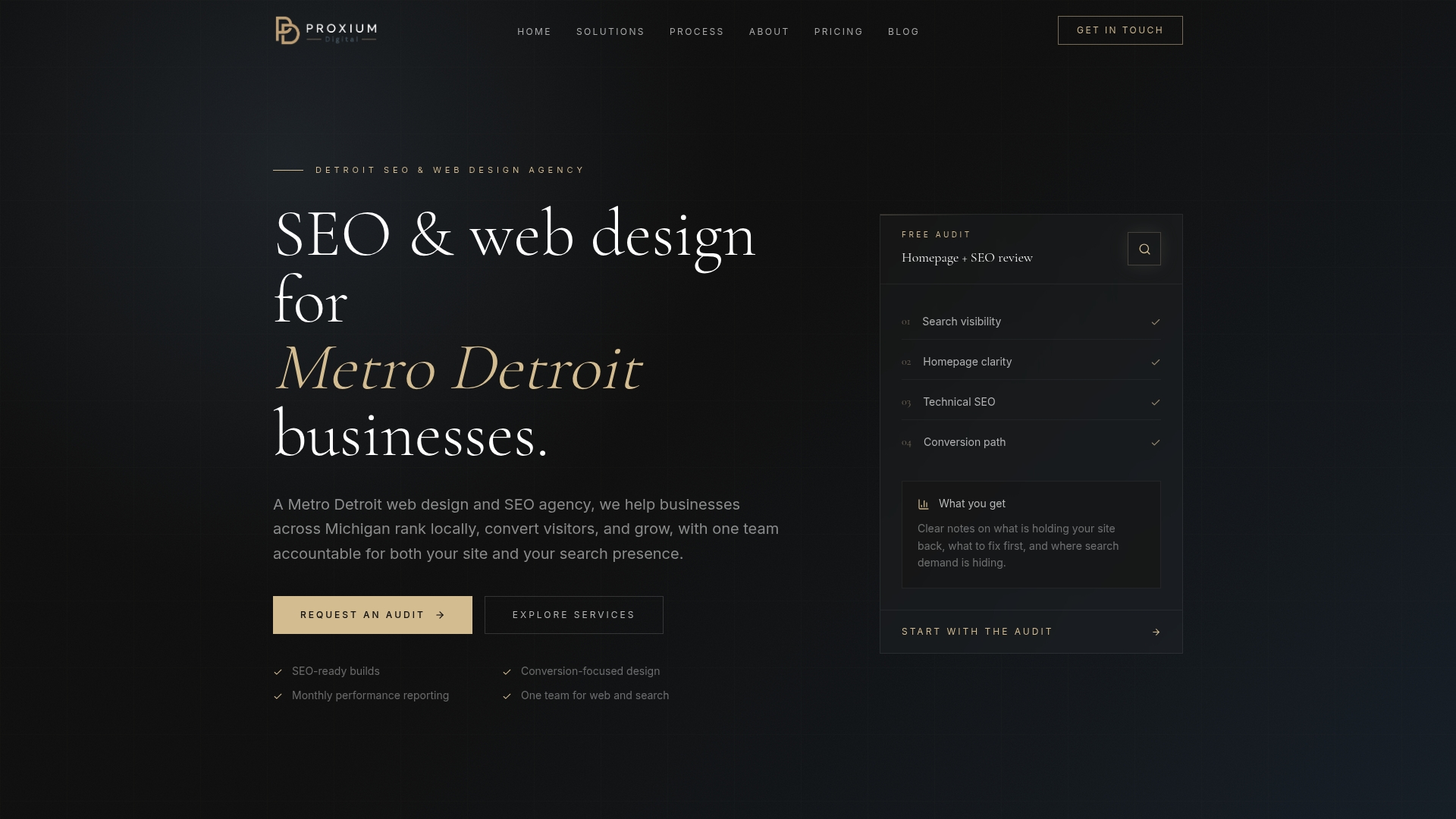
Proxiumdigital’s SEO optimization service includes on-page image audits as part of every engagement: alt-text coverage, filename conventions, image sitemaps, and structured data, all handled by the same team building or managing your site. No separate vendor, no handoff gaps. For businesses that want ongoing coverage, the website management plan includes monthly accessibility and SEO checks so alt-text gaps don’t accumulate between site updates. See Proxiumdigital’s full service options or review pricing to find the right fit.
Sources
These references are the primary authorities behind this guide. Consult Google Search Central and W3C for policy and technical rules, Nielsen Norman Group for intent-based writing guidance, WebAIM and university accessibility pages for practical examples and decision frameworks.
- Image SEO Best Practices | Google Search Central | Documentation
- Alternative Text | WebAIM
- Examples of Alt Text - University of South Carolina
- WAI images decision tree | W3C
FAQ
Is alt text good for SEO?
Yes. Google Search Central states that alt text helps Google understand an image’s subject and improves its chances of appearing in relevant image search results. It’s one of the few on-page signals that directly affects image indexing.
What is an example of good alt text?
For a product photo of a red ceramic coffee mug: alt="Red ceramic coffee mug with a wide handle". It names the product and key visual details — everything a screen-reader user or search crawler needs.
What is the alt text rule for decorative images?
Use alt="" (null alt) for any image that is purely stylistic or whose meaning is already covered by surrounding text. The alt attribute must still be present in the HTML; omitting it entirely causes screen readers to announce the filename instead.
When should you not use descriptive alt text?
Skip descriptive alt text when the image adds no unique meaning: decorative dividers, background textures, icons that duplicate adjacent link text, or images whose content is fully described in the surrounding copy. In all these cases, alt="" is the correct choice per WebAIM and the W3C decision tree.